Blog

  • Best AI Video Generator for Beginners 2026

    Best AI video generator for beginners 2026 is what you need if you’ve never made an AI video before. Most “best AI video tool” lists are actually useless to you.

    They compare advanced features you don’t need yet, use technical words that make no sense on day one, and often recommend tools built for professional editors, not someone opening an AI video tool for the first time.

    This guide is different. It only covers tools that are genuinely easy to start with, even if you’ve never written a single AI prompt before.
    ai video generator for beginners 2026

    What Makes the Best AI Video Generator for Beginners 2026?

    A good beginner tool has three things: free credits so you can try it without paying, a simple prompt box instead of a complicated editor, and clear results even from a short, basic description.

    You should not need to learn camera terms, lighting setups, or editing software just to make your first clip. If a tool makes you feel confused within the first two minutes, it’s not a beginner tool, no matter how popular it is.

    There’s also a difference between “easy to open” and “easy to actually get good results from.” Some tools are simple to open but need very detailed prompts to look decent, which quietly pushes beginners back into feeling stuck. The tools below were picked because they work reasonably well even with short, plain-English prompts, not just because their homepage looks simple.

    Google Veo 3 – Best AI Video Generator for Beginners

    Here is the complete list of the best ai video generator for beginners 2026 that we tested:

    Google Veo 3 (via Google Flow)

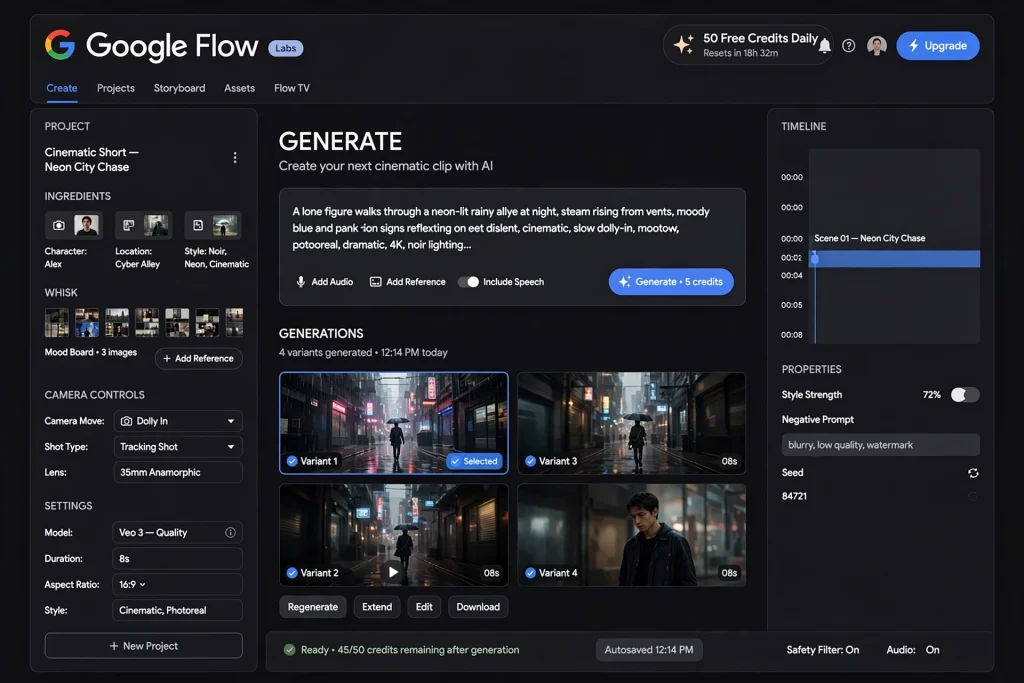
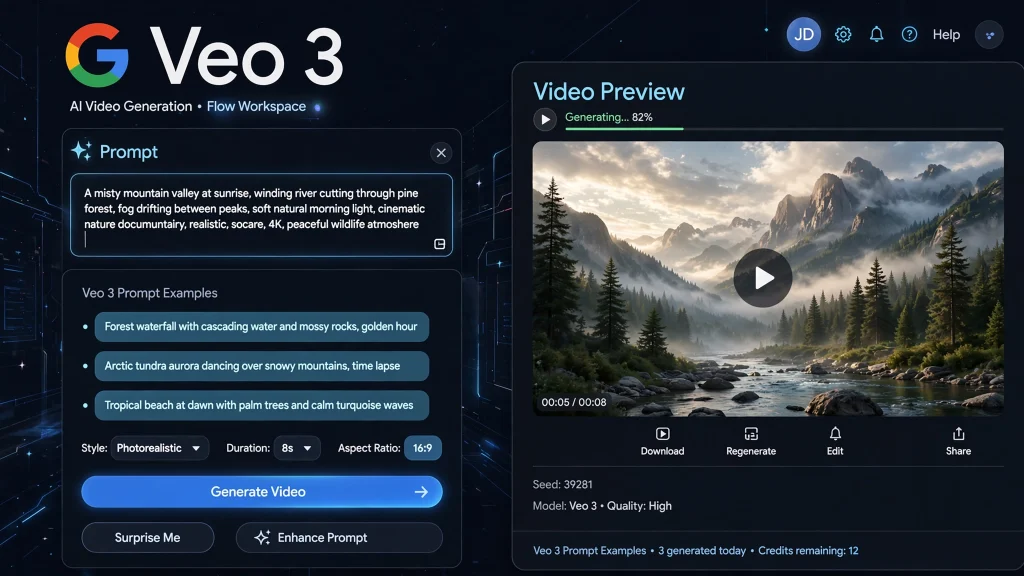
    Veo 3 sounds advanced, but Google Flow makes it surprisingly simple for a first-timer. You type a short description, pick a shape (like 16:9 or 9:16), and hit generate. It even adds sound and dialogue automatically, which most beginner tools don’t do at all. Learn more about Veo 3 directly from Google.

    So stop searching for the best ai video generator for beginners 2026 and start with Canva or CapCut today.

    Canva AI Video

    If you’ve ever used Canva for anything — a poster, a resume, a social post — this one will feel instantly familiar. The AI video tool sits right inside the app you may already know, so there’s nothing new to learn beyond typing what you want.

    CapCut AI Video Generator

    CapCut is already one of the most-used editing apps on phones, especially among younger creators. Its AI video feature works the same simple way: type an idea, tap generate, and it appears right inside your usual editing timeline.

    InVideo AI

    InVideo AI is built around templates, which is genuinely helpful for beginners. Instead of a blank page, you start from a template close to what you want, then let the AI fill in the rest based on your description.

    Luma Dream Machine

    Luma is fast and stripped-down in the best way. There aren’t many settings to get confused by, which makes it a good second stop once you’ve tried one tool and want to compare results quickly.

    How to Make Your First AI Video (Step by Step)

    1. Pick one tool from the list above. Don’t try five tools on day one — you’ll just get confused. Start with whichever one feels most familiar.
    2. Write a simple, clear sentence. Describe what you want to see: the subject, what it’s doing, and where it’s happening. “A cat sleeping on a sunny windowsill” works better than one abstract word.
    3. Choose your format. Pick 16:9 for YouTube, or 9:16 if it’s going on Reels, TikTok, or Shorts.
    4. Generate and watch the result. Your first try often won’t be perfect — that’s completely normal, even for experienced users.
    5. Adjust your prompt, not the tool. If the result is off, change your description slightly (add lighting, mood, or camera angle) instead of switching to a different app entirely.

    If you want a deeper breakdown of exactly how to structure a prompt like this, our guide on Veo 3 prompt examples walks through the full formula with real examples you can copy.

    Common Mistakes Beginners Make

    The most common mistake is writing a prompt that’s too short and vague, like just “a city.” The AI has to guess everything else, so the result usually looks generic. Another common mistake is switching apps constantly instead of learning how one tool responds to your prompts — you learn faster by sticking with one tool for a few tries.

    A third mistake is giving up after one bad result. Almost nobody gets a perfect video on their first try, including people who’ve used these tools for months. The fix is almost always a small prompt change, not a completely new tool.

    Cost confusion is also common. Many beginners assume every tool needs a paid plan right away, which isn’t true. If you’re specifically curious about Google’s tool, we broke down real numbers in our guide to Veo 3 pricing in Pakistan & India, including the free options available before you’d ever need to pay.

    Do Beginners Need a Paid Plan?

    No — every tool on this list has a usable free option, which is exactly why they made this list. You can realistically learn the basics, make several videos, and figure out which tool fits your style without spending anything. If you specifically want to squeeze the most out of Veo 3’s free tier, our guide on using Veo 3 for free without a watermark is worth reading before you generate your first clip.

    Make Better Prompts Without the Guesswork

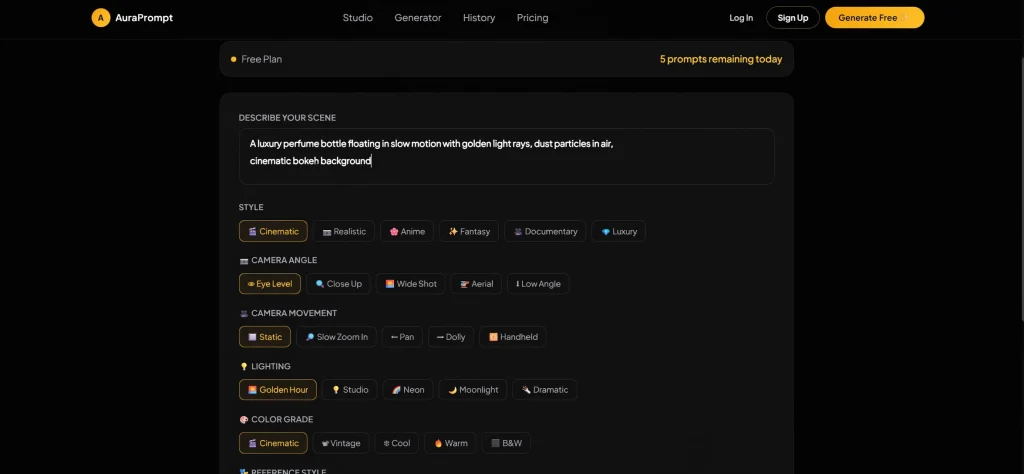
    The biggest skill gap for beginners isn’t the tool — it’s the prompt. Even the best AI video generator produces a weak result from a weak prompt. AuraPrompt is a free tool built exactly for this: you pick your style, camera angle, and mood from simple options, and it builds a properly structured prompt for you automatically, so you’re not guessing what to type. We go into more detail on this approach in our free AI prompt generator guide.

    If you’d rather see the complete list of every tool we tested, not just the beginner-friendly picks, our full best AI video generator 2026 comparison covers all ten side by side, including the ones built for advanced, professional use.

    Frequently Asked Questions

    What is the best AI video generator for beginners free? Canva AI Video and CapCut AI are the easiest and most beginner-friendly free options, since both live inside apps many people already use.

    What is the best AI video generator free? Google Veo 3, through Google Flow, gives 50 free credits daily and produces the highest overall quality among free options.

    What is the best AI video generator for beginners online? InVideo AI and Luma Dream Machine both work directly in your browser with no downloads, making them easy starting points.

    What is a free AI video generator? A free AI video generator is a tool that turns a text description into a video clip without requiring payment, usually with a daily or monthly credit limit.

    What is an AI text to video generator free option? Google Flow, Luma Dream Machine, and Canva AI Video all offer free text-to-video generation with daily or monthly limits.

    Is there a good AI video generator apk for beginners? CapCut is available as a mobile app (APK on Android) and is one of the simplest AI video tools built specifically for phone use.

    What is the best AI image to video generator? Luma Dream Machine and Pika Labs are both strong choices for turning a single image into a moving video clip.

    What is the best AI video generator 2026? Google Veo 3 currently leads overall for quality and built-in sound, though the best choice really depends on your skill level and budget.

    What was your first AI video generator, and how did it go? Drop a comment below — your experience might help someone else pick their first tool with a lot less trial and error.
  • Best AI Video Generator 2026 – Top 10 Tested & Compared (Free & Paid)

    Picking the best AI video generator in 2026 is not easy. There are dozens of tools out there. Half the “best of” lists online still recommend apps that shut down months ago.

    I spent real time testing the tools that still work right now. I checked free plans, video quality, watermarks, and how easy each one is to use.

    Here’s the honest list — no dead tools, no fluff, just what actually works.

    Google Veo 3 – Best AI Video Generator 2026 for Cinematic Quality

    Google’s Veo 3 is the most advanced tool on this list. It’s the only one here that creates matching dialogue, sound effects, and background noise along with the video. Most other tools only handle the picture, not the sound.

    Best for: Cinematic quality with built-in sound. Free plan: Yes. Google Flow gives 50 free credits every day, no subscription needed. Pros: Best realism, real audio, understands prompts well. Cons: Paid plans get expensive if you use it a lot.

    If you use Veo 3, three guides will save you time and money: our Veo 3 prompt examples guide for better results, our Veo 3 pricing in Pakistan & India breakdown, and our guide on using Veo 3 for free without a watermark.

    Quick tip: No matter which tool you pick from this list, your video is only as good as your prompt. AuraPrompt is a free tool that builds a proper, ready-to-use prompt for you in one click, so you don’t have to write it by hand every time. We explain this more in our free AI prompt generator guide.

     ai video generator 2026 prompt tool aura prompt

    2: Kling AI – Best Free AI Video Generator 2026

    Kling is one of the strongest free alternatives to Veo 3 for video quality, especially realistic movement.

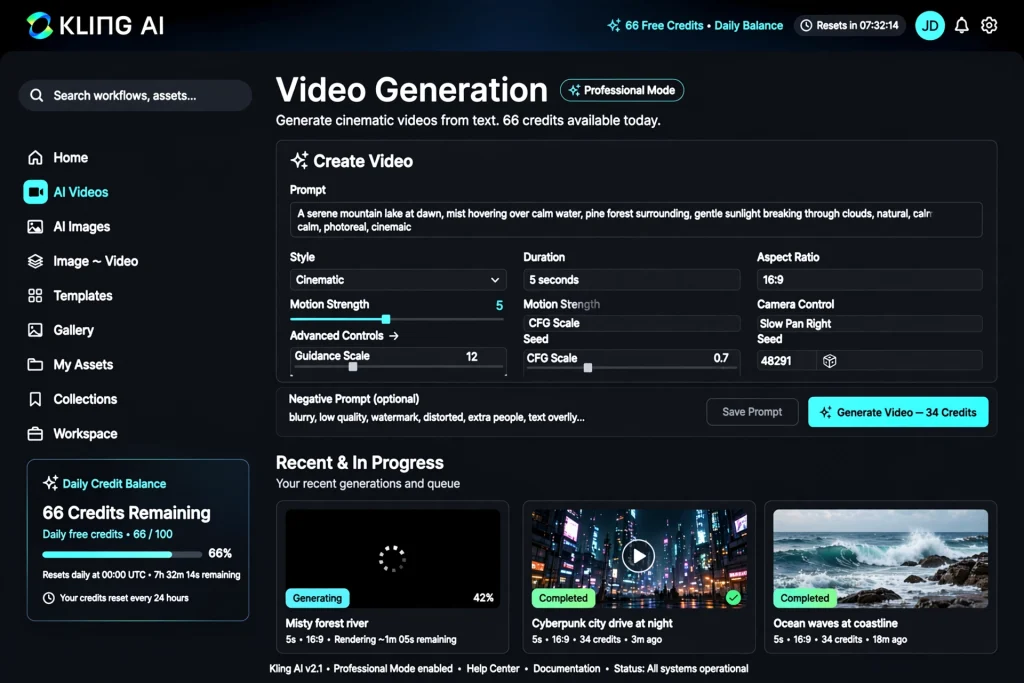
    Best for: Realistic clips on a free budget. Free plan: Yes — 66 free credits every 24 hours. Pros: Really good motion quality, generous free credits every day. Cons: Free videos come with a visible watermark.

    #3: Runway-Best AI Video Generator 2026

    Runway is a favorite among video editors and filmmakers because it gives you a lot of control over the final result.

    Best for: People who want detailed control over camera and motion. Free plan: A small number of free credits when you sign up, then paid plans. Pros: Strong editing tools, lots of tutorials online. Cons: Free plan is small compared to Kling or Veo 3.

    #4: Luma Dream Machine-Best AI Video Generator

    Luma is fast and simple, with no real learning curve.

    Best for: Quick, casual videos. Free plan: Yes, with a daily limit. Pros: Very fast, easy to use, good for social media. Cons: Clips are shorter than some other tools.

    #5: Pika Labs-Best AI Video Generator2026

    Pika focuses on fun, stylized effects instead of realism.

    Best for: Creative, stylized short clips for social media. Free plan: Yes, with a monthly credit limit. Pros: Fun visual effects, easy prompt-to-clip process. Cons: Not the best choice for realistic or cinematic videos.

    #6: Seedance 2.0-Best AI Video Generator 2026

    Seedance has become popular fast because it’s genuinely free and watermark-free.

    Best for: Free videos with no visible watermark. Free plan: Yes — one of the few tools with clean, watermark-free exports for free. Pros: No watermark, solid video quality for a free tool. Cons: Newer platform, so support is still catching up.

    #7: CapCut-Best AI Video Generator2026

    CapCut added AI video generation right inside its already-popular editing app.

    Best for: Mobile creators who already use CapCut. Free plan: Yes, and it’s generous for casual use. Pros: Works well with CapCut’s editing tools, great for quick social videos. Cons: Less control over fine details than dedicated video tools.

    #8: Synthesia

    Synthesia works differently from the rest. It uses AI avatars that read a script, instead of creating new scenes.

    Best for: Training videos, presentations, and avatar-led content. Free plan: A limited trial, mostly built for paying businesses. Pros: Very polished AI avatars, great for professional use. Cons: Not built for creative or cinematic video at all.

    #9: InVideo AI

    InVideo AI turns a script or idea into a finished, marketing-style video using templates.

    Best for: Marketers who want fast, templated videos. Free plan: Yes, with a watermark and limited exports. Pros: Huge template library, easy for beginners. Cons: Less creative freedom than tools built purely for generation.

    #10: Canva AI Video

    Canva added AI video generation right into its design tools, which is handy if you already use Canva.

    Best for: Teams already using Canva. Free plan: Yes, built into Canva’s free plan with limits. Pros: Easy to use, works with your existing designs and brand colors. Cons: Video quality is behind dedicated tools like Veo 3 or Kling.

    Quick Comparison Table

    ToolFree PlanWatermarkBest For
    Google Veo 3Yes (50 credits/day)NoCinematic quality + sound
    Kling AIYes (66 credits/day)YesRealistic motion, free
    RunwayLimitedNoDetailed editing control
    Luma Dream MachineYesNoFast, casual videos
    Pika LabsYesVariesStylized, creative clips
    Seedance 2.0YesNoFree, clean exports
    CapCut AIYesNoMobile/social creators
    SynthesiaLimited trialNoAI avatar videos
    InVideo AIYesYesMarketing videos
    Canva AI VideoYesNoCanva users

    Final Verdict

    There’s no single “best” tool for everyone — it depends on what you’re making. For the best overall quality with real sound, Google Veo 3 is still the top pick, and it’s now easy to try for free with daily credits. If you want realistic motion without paying anything, Kling AI‘s 66 daily credits are hard to beat, even with the watermark. If you want completely clean, watermark-free videos for free, Seedance 2.0 is the most exciting option right now.

    Whichever tool you pick, remember: the prompt matters more than the tool. A weak, one-line prompt wastes your daily credits on a clip you probably won’t use.

    Frequently Asked Questions

    What is the best AI video generator? Google Veo 3 leads right now, mainly because it creates matching sound and dialogue along with the video, not just the picture.

    What is the best free AI video generator? Kling AI and Seedance 2.0 are the strongest free options — Kling for motion quality, Seedance for clean, watermark-free videos.

    Which AI video generator is best for beginners? Canva AI Video and CapCut AI are the easiest to start with, since both are part of apps many people already use.

    What is the best AI video generator for YouTube? Google Veo 3 and Runway both work well for YouTube — Veo 3 if you want built-in sound, Runway if you want more manual editing control.

    Try VEO 3 :https://deepmind.google/models/veo/

    Which one are you trying first? Drop a comment with your pick — or tell us if we missed a tool that deserves a spot on this list.

  • Prompt Generator: The Ultimate Free Tool to Create Perfect AI Prompts in 2026

    Are you tired of getting bad results from ChatGPT, Midjourney, or Veo 3? The problem is not the AI, it’s your prompt. A perfect prompt can give you 10x better results. That’s why you need a prompt generator.

    In this guide, I will show you what a prompt generator is, how it works, and how you can use our free AuraPrompt generator to create perfect prompts for any AI.

    What is a Prompt Generator?

    A prompt generator is a free online tool that converts your simple idea into a detailed, professional AI prompt.

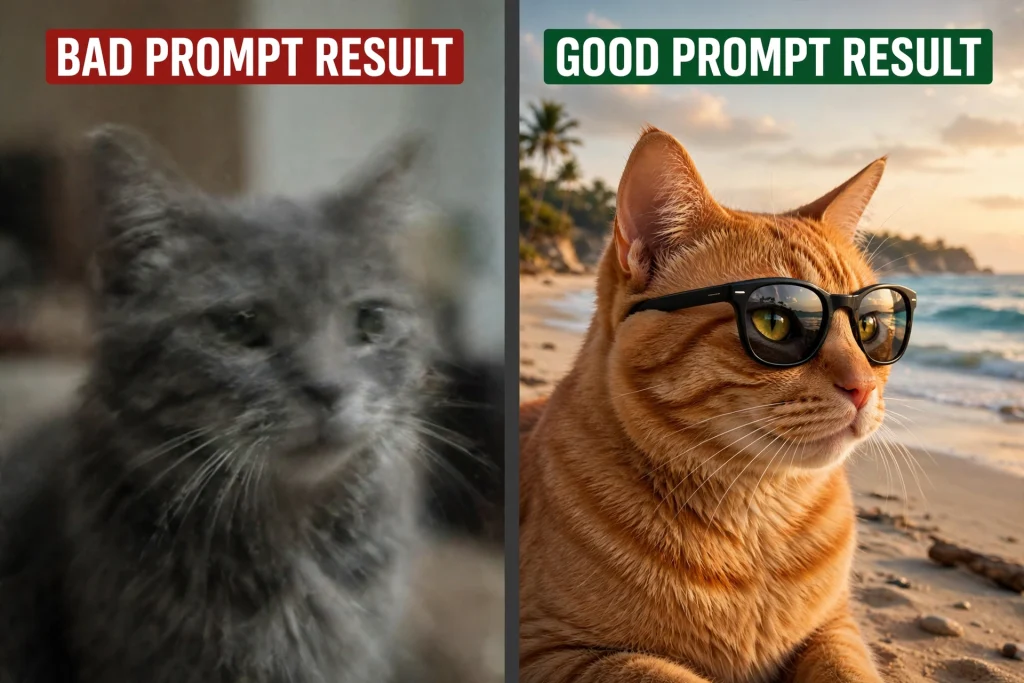
    Bad prompt result vs Good Prompt result

    For example, you type: a cat

    A normal AI will give you a basic cat.

    But a prompt generator converts it to: A cinematic close-up of a fluffy orange cat wearing black sunglasses, sitting on a beach at sunset, 4K, ultra realistic, shallow depth of field --ar 16:9

    The second prompt will give you a viral image! That’s the power of a prompt generator.

    You can try it here: AuraPrompt – Free AI Prompt Generator

    Why Do You Need a Prompt Generator in 2026?

    In 2026, everyone is using AI, but 90% of people write bad prompts. AI tools like ChatGPT, Midjourney, Sora, Veo 3, and Stable Diffusion need perfect instructions.

    1. Save Time: No need to write 100 words, just write 3 words and the generator will expand it.

    2. Save Money: Tools like Veo 3 and Midjourney charge per generation. A bad prompt wastes your credits. A prompt generator saves your money. Learn more about Google Veo 3 pricing.

    3. Get Pro Results: You will get results like a pro prompt engineer.

    Best Prompt Generator Tools – Tested by Me

    I tested 10+ tools, here are the best ones:

    1. AuraPrompt (Best Free)
    This is our own tool, 100% free forever. It supports text, image, and video prompts. Best for beginners. It has a special Veo 3 Prompt Generator mode.

    prompt generator

    Try here: AuraPrompt Veo 3 Prompt Generator

    2. PromptPerfect
    Good for ChatGPT prompts. Paid tool, starts at $20/month. You can check it at promptperfect.jina.ai

    3. Midjourney Prompt Helper
    Official helper by Midjourney. Only for images. Available on Midjourney’s official site.

    4. God of Prompt
    Free Chrome extension for ChatGPT.

    For me, AuraPrompt is best because it’s free and works for all AI tools.

    How to Use AuraPrompt Prompt Generator? (Step-by-Step)

    Using it is very easy:

    Step 1: Go to auraprompt.com
    Step 2: Select your AI – ChatGPT, Midjourney, Veo 3, Sora, etc.
    Step 3: Type your simple idea in the box – e.g., “a boy playing football”
    Step 4: Click “Generate Prompt”
    Step 5: Copy the detailed prompt and paste it into your AI tool.

    That’s it! You will see 10x better results instantly.

    Prompt Generator for Different AI Tools

    For ChatGPT / Gemini:
    A good prompt generator adds role, context, and format. Example: “Act as an expert SEO writer…”

    For Midjourney / Flux:
    It adds style, lighting, camera, and –ar parameters. Learn more about Midjourney prompt structure.

    For Veo 3 / Sora / AI Video Generator:
    This is most important. Video needs camera movement, audio, and physics. Our Veo 3 prompt generator adds things like “slow dolly zoom, cinematic lighting, ambient audio, 24fps”. You can read our detailed guide on Veo 3 Free Methods.

    Free vs Paid Prompt Generator

    FeatureFree Generator (AuraPrompt)Paid Generator
    Price$0 forever$20/month
    Video PromptsYesNo
    WatermarkNoYes in some
    LimitUnlimitedLimited

    So why pay? Use free!

    Final Words – My Recommendation

    If you are using any AI in 2026, you MUST use a prompt generator. It will save your time, money, and give you viral results.

    My #1 recommendation is AuraPrompt because it’s made for beginners, it’s free, and it supports Veo 3, Sora, Midjourney, and ChatGPT in one place.

    best prompt generator

    Frequently Asked Questions (FAQs) – Prompt Generator

    Q1: What is the best free prompt generator in 2026?
    The best free prompt generator in 2026 is AuraPrompt. It’s 100% free, unlimited, no watermark, and supports Veo 3, Sora, Midjourney, ChatGPT, and Flux in one place. Unlike other tools that charge $20/month, AuraPrompt is free forever. You can try it here: auraprompt.com

    Q2: How to generate prompts for Google Veo 3?
    To generate prompts for Veo 3, you need cinematic terms. Don’t just write “a cat walking”. Write “Cinematic 4K close-up of an orange cat walking in Tokyo at night, neon lights reflecting, shallow depth of field, slow dolly zoom, ambient city audio, 24fps”. Our Veo 3 Prompt Generator does this automatically. Just type your idea and it converts it to a pro Veo 3 prompt.

    Q3: Is there a prompt generator without login?
    Yes, AuraPrompt works without any login or signup. Just open the site and start generating. No email needed. Many tools like PromptPerfect need login, but we don’t.

    Q4: Can a prompt generator really make videos better?
    Yes, 100%. I tested it. With a bad prompt, Veo 3 wasted my 10 credits and gave me a blurry video. With AuraPrompt’s prompt, the same idea gave me a viral 4K video in one try. Good prompt = save money + save time + better result.

    Q5: Which AI needs a prompt generator the most?
    Video AI tools need it the most – Veo 3, Sora, and Runway. Because one video costs 10x more than one image. If your prompt is wrong, you lose money. So always use a generator for video.

    Did This Tool Help You? Let’s Talk! 👇

    Hey everyone! I built this Prompt Generator tool for you all for free, after working day and night on it.

    Now it’s your turn!

    Tell me honestly in the comments below, I will reply to every single comment:

    1. Which prompt did you create with this tool? (Veo 3, Midjourney, or ChatGPT?)

    2. How was your result? If you faced any problem, tell me, I will fix it right now!

    3. Which other AI should I add to this tool? Sora? Kling? Luma? Comment below and I will add it tomorrow!

    The person with the best comment will personally get my 1-Month Google AI Pro (Veo 3) free trick from me!

    So what are you waiting for? Comment below and tell me “How did you like this Prompt Generator tool?”

    I’m waiting for your comment – Hassaan.

  • How to Use Veo 3 for Free Without Watermark? 3 Best Methods [2026]

    Want to use Veo 3 for free without watermark? You’re not alone. Google’s Veo 3 has become the go-to AI video generator for creators who want cinema-quality clips with real dialogue and sound. The catch is that most people assume you need a paid subscription to get anything usable out of it.

    This guide walks through three practical free methods, how to actually get clean (watermark-free) exports, whether students get a special deal, and what happens once your free access runs out.

    how to use veo 3 for free without watermark in google flow with 50 free credits daily

    How to Use Veo 3 for Completely Free?

    There isn’t just one way to get free Veo 3 access — here are the three that actually work right now.

    Method 1: Google Flow’s Daily Free Credits

    Google Flow is Google’s own filmmaking interface built around Veo 3, and it’s the most direct free route available. Here’s how to use it:

    1. Go to labs.google/flow and sign in with any Google account — no credit card required.
    2. You’ll land on your workspace with a daily credit balance already loaded (currently 50 free credits per day for non-subscribers).
    3. Click “New Project,” then type your prompt into the text box. Be specific — describe your subject, action, setting, camera movement, and sound for the best results.
    4. Choose your aspect ratio (16:9 for YouTube, 9:16 for Reels/TikTok) and hit “Generate.”
    5. Each generation takes anywhere from 30 seconds to a couple of minutes. Once it’s ready, preview it, and download the clip directly to your device.

    Your credits reset every 24 hours, so if you run out, come back the next day. This is genuinely the best starting point — it’s stable, official, and doesn’t involve any workarounds.

    Method 2: Kling AI’s Free Daily Credits

    Kling AI isn’t made by Google, but it’s a strong alternative video model you can use alongside Veo 3 to stretch your free output further. Kling’s free plan gives you 66 credits every 24 hours, which resets daily and does not roll over.

    In practice, that’s enough for roughly 6 short clips in Standard mode (each costs about 10 credits), or 1–2 clips if you use the higher-quality Professional mode (around 35 credits each). Sign up at Kling’s official site, verify your account, and the 66 credits appear automatically on login. Combine this with your daily Google Flow credits, and you effectively double your free daily video output across two different AI models.

    One honest note: Kling’s free tier does include a visible watermark on exports, same as most free AI video tools. Keep that in mind when picking which platform to use for which clip.

    Method 3: Google AI Studio

    Google AI Studio (aistudio.google.com) is Google’s developer-facing platform, and it also gives access to Veo through a free quota tied to your Google account. It’s a bit more technical than Flow — you’re working with a prompt console rather than a polished editor — but it’s a solid backup option when your Flow credits run out for the day. It’s also useful if you want to batch-test several prompt variations quickly before committing your daily Flow credits to a final version.

    How to Actually Use Veo 3 for Free Without Watermark

    If you specifically need Veo 3 for free without watermark, a few methods work better than others.

    This is where most people get stuck. A few things actually work:

    Prompt-level trick: Some users report that explicitly adding a phrase like “(no watermark)” or “clean export, no logo” at the end of their Veo 3 prompt reduces watermark appearance on certain generations. This isn’t officially documented by Google and doesn’t work 100% of the time, so treat it as a minor experiment rather than a guarantee.

    Switch tools for clean output: If a specific clip absolutely needs to be watermark-free, your most reliable option is generating on Google Flow’s free tier directly, since Flow’s daily free credits typically export without a visible watermark (unlike Kling’s free tier, which always shows one).

    Better prompts, fewer wasted generations: Whichever method you use, a poorly structured prompt wastes your limited free credits on a clip you’ll just delete anyway. We covered the exact prompt formula — subject, action, camera, lighting, style, and sound — with ready-to-use examples in our Veo 3 Prompt Examples guide. Getting the prompt right the first time matters even more when your daily credits are limited.

    Can Students Use Veo 3 for Free?

    Yes — students get one of the best deals available. Google AI Pro, which unlocks a much larger Veo 3.1 credit allowance than the free daily tier, is available at a discounted student rate through the Google AI Pro student offer for eligible college and university students in supported countries. You’ll need to verify your student status with your school email or a service like SheerID during signup. Combined with your daily free Flow credits, this makes Veo 3 genuinely affordable for coursework, student films, and class projects.

    What Happens After Veo 3 Free Trial Ends? Pricing Explained:

    Once your daily free credits (or student trial) aren’t enough anymore, you’ll move to a paid plan. Pricing varies a lot depending on where you live — and it’s often cheaper than people expect, especially outside the US. We broke down the exact numbers for two major regions, plan by plan, in our guide to Veo 3 Pricing in Pakistan & India, including free options, entry-level plans, and full Ultra-tier pricing.

    If you’re ready to skip the manual prompt-writing process entirely, AuraPrompt’s generator builds structured, Veo-ready prompts for you in one click — helpful for making the most of whichever free or paid tier you’re using.

    how to use veo 3 for free without watermark kling ai 66 free credits daily balance method

    Frequently Asked Questions

    How Do I Use Veo 3 for Free? – 3 Methods You can use Google Flow’s daily free credits, Kling AI’s 66 daily free credits as a secondary source, or Google AI Studio’s free developer quota. Combining all three gives you the most free generations per day.

    Does Veo 3’s free tier include a watermark? Generally no — Google Flow’s free daily credits typically export clean, watermark-free clips, though Google states limits and features can change at any time.

    Is Kling AI a good free alternative to Veo 3? It’s a useful supplement for extra free generations, but its free tier always includes a visible watermark, so it’s better for testing ideas than for final, publish-ready clips.

    Do students really get Veo 3 for free? Not entirely free, but Google AI Pro’s student discount makes the paid tier significantly cheaper for verified students, on top of the free daily credits everyone already gets.

    Tried any of these methods yourself? Drop a comment below with which one worked best for you — it genuinely helps other readers pick the right free route.

  • Veo 3 Pricing in Pakistan & India: What You’ll Actually Pay in 2026

    Quick summary: Veo 3 Pricing in Pakistan & India gives you 50 free credits every day with no subscription. Paid access starts at just ₹199/month in India and around Rs. 700/month in Pakistan

    If you’ve read our guide on Veo 3 prompt examples, the next question is simple: how much does Veo 3 actually cost if you live in Pakistan or India? The answer might surprise you — and honestly, it should surprise readers anywhere in the world too, because South Asia is getting some of the cheapest legal access to Veo 3 on the planet right now. If you’re looking for prompt inspiration, check out this article.

    Understanding Veo 3 Pricing in Pakistan & India properly can save you a lot of money compared to guessing.

    Let’s break down Veo 3 Pricing in Pakistan & India plan by plan, in plain numbers.

    Why Veo 3 Pricing Pakistan India Should Surprise Global Readers Too

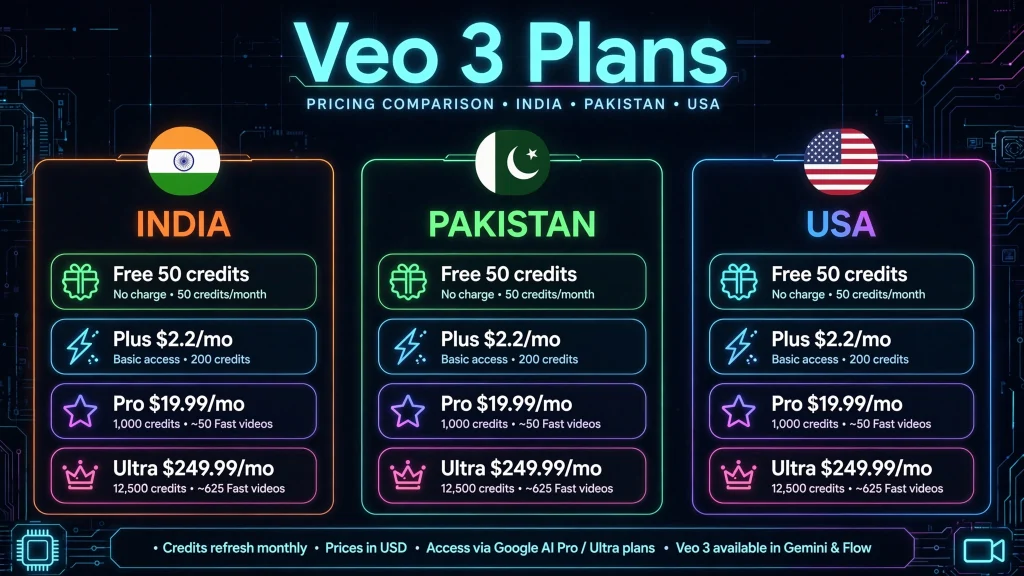
    Here’s the part that makes this genuinely interesting even if you’re reading from the US, UK, or Europe: Google AI Ultra costs $249.99/month in the United States. In India, the equivalent tier starts at just ₹6,500/month — roughly $77 USD. That’s less than a third of the US price for a comparable AI subscription tier. Even the mid-tier AI Pro plan, which costs $19.99/month in the US, is available in India for as little as ₹975/month (about $11) with a first-year discount, or completely free for 18 months if you’re on Reliance Jio.

    This isn’t a coincidence — it’s a deliberate regional pricing strategy Google has been rolling out through 2026 to compete with cheaper AI alternatives like OpenAI’s ChatGPT Go in price-sensitive markets. The result is that South Asian users currently get some of the best value-per-dollar access to Veo 3.1 anywhere in the world.

    Veo 3 Pricing in Pakistan & India

    Veo 3 Pricing: India vs. Pakistan vs. US

    PlanIndiaPakistanUS
    Free (Flow)50 credits/day50 credits/day50 credits/day
    Google AI Plus₹199–399/month~Rs. 700–1,400/monthNot offered separately
    Google AI Pro₹975–1,950/month~$19.99/month (converted)$19.99/month
    Google AI Ultra₹6,500–19,500/month~Rs. 35,000+/month$249.99/month

    Google AI Plus: The Cheapest Paid Way In

    This is the entry point, and it’s genuinely affordable.

    In India: ₹199 per month for the first six months, then ₹399 per month. In Pakistan: around Rs. 1,400 per month, with a 50% discount for the first six months — so roughly Rs. 700 per month to start.

    For that price, both countries get access to video generation inside the Gemini app and Flow, using Veo 3 Fast (a quicker, slightly lower-quality version of Veo 3). You also get a bump in Gemini AI usage limits and extra Google storage.

    To put that in perspective for readers outside South Asia: ₹199 is about $2.20 USD, and Rs. 700 is roughly $2.50 USD. That’s less than a single cup of coffee in most Western cities — for a monthly AI video subscription.

    The Free Option Nobody Talks About

    Before you pay anything, know this: Google Flow gives non-subscribers 50 free credits every single day. That’s enough to test a few short Veo 3.1 clips without spending a single rupee. If you’re just curious or want to try prompt ideas before committing to a plan, start here first.

    This is the entry point, and it’s genuinely affordable.

    In India: ₹199 per month for the first six months, then ₹399 per month. In Pakistan: around Rs. 1,400 per month, with a 50% discount for the first six months — so roughly Rs. 700 per month to start.

    For that price, both countries get access to video generation inside the Gemini app and Flow, using Veo 3 Fast (a quicker, slightly lower-quality version of Veo 3). You also get a bump in Gemini AI usage limits and extra Google storage.

    To put that in perspective for readers outside South Asia: ₹199 is about $2.20 USD, and Rs. 700 is roughly $2.50 USD. That’s less than a single cup of coffee in most Western cities — for a monthly AI video subscription.

    Google AI Pro: Veo 3 Pricing Pakistan India Middle Tier

    This plan unlocks more serious usage.

    In India: ₹1,950 per month normally. New non-Jio users can get 50% off (around ₹975/month) for the first year. If you’re a Reliance Jio customer, you can get AI Pro completely free for 18 months — one of the best AI deals currently available anywhere. In Pakistan: Google AI Pro is priced globally at $19.99/month equivalent, converted to local currency at checkout, since Pakistan’s rupee-priced tiers currently focus on the Plus plan.

    AI Pro includes 1,000 monthly Flow credits, which is enough for roughly 100 Veo 3.1 Lite videos, 50 Veo 3.1 Fast videos, or about 10 full-quality Veo 3.1 videos, depending on which version you use.

    Google AI Ultra: Veo 3 Pricing Pakistan India Full Package

    This is where you get complete, high-quality access to Veo 3.1.

    In India: ₹6,500 per month for the base Ultra tier, or ₹19,500 per month for the higher tier with even bigger usage limits. In Pakistan: promotional pricing has been seen above Rs. 35,000 per month, with standard pricing set even higher, following a recent round of price increases across Google’s subscription plans in Pakistan.

    Ultra gives you 25,000 monthly Flow credits — around 5,000 Lite videos, 2,500 Fast videos, or 250 full-quality Veo 3.1 videos. It also unlocks 4K output on supported tools and the highest priority processing.

    Paying Per Video Instead (API / Developer Pricing)

    If you’re a developer building an app rather than a regular user, Google also lets you pay per second of video through the Gemini API. This pricing is the same in USD everywhere, including Pakistan and India:

    • Veo 3.1 Lite: around $0.03–$0.05 per second
    • Veo 3.1 Fast: around $0.10–$0.12 per second
    • Veo 3.1 Standard: $0.40 per second

    An 8-second clip on Standard quality costs about $3.20. The same clip on Fast costs under $1. Note that the older “veo-3.0” model IDs were shut down on June 30, 2026, so any new project should be built on Veo 3.1 pricing from the start.

    Now that you’ve seen the numbers, here’s how Veo 3 Pricing in Pakistan & India breaks down by use case.

    Which Plan Should You Actually Pick?

    • Just experimenting? Start with the free 50 daily Flow credits.
    • Casual creator, tight budget? Google AI Plus is hard to beat at roughly $2–3 a month.
    • Regular content creator or small business? Google AI Pro gives you a real monthly volume of videos without the Ultra price tag — especially valuable if you’re a Jio customer in India getting it free.
    • Professional studio or agency? Google AI Ultra is the only tier with full Veo 3.1 quality and 4K output at scale.
    Veo 3 Pricing in Pakistan & India dashboard showing video preview

    One More Thing: The Prompt Still Matters Most for Veo 3 Pricing in Pakistan & India

    Whichever plan you choose, the plan itself won’t fix a weak prompt. A ₹19,500 Ultra subscription and a free Flow credit will both waste your generation on a vague, one-line description. What actually determines whether your video looks professional is the structure behind your prompt — subject, action, setting, camera, style, mood, and sound.

    We covered the exact formula, with ready-to-use examples, in our guide to Veo 3 prompt examples. If you’d rather skip typing all of that out by hand every time, AuraPrompt builds properly structured Veo-ready prompts for you in one click — so your subscription, whichever tier you’re on, actually gets used well.

    Whatever you take away from this, if you want great prompts without writing them by hand every time, use my tool.

    Final Thoughts on Veo 3 Pricing in Pakistan & India

    To sum it up, Veo 3 Pricing in Pakistan & India is a game-changer for creators in South Asia. When you compare the US price of $249.99/month for Google AI Ultra with just ₹6,500/month in India and around Rs. 700 to Rs. 2,000/month in Pakistan for the same level of access, the difference is massive.

    For anyone living in Pakistan or India, this is officially the cheapest legal way to use Google’s most powerful video model. Whether you are a YouTuber, a freelancer, or just experimenting with AI video, understanding Veo 3 Pricing in Pakistan & India will save you hundreds of dollars every year.

    My advice? Start with the 50 daily free credits, test your prompts, and then go for the cheapest plan that fits your needs. Don’t pay US prices when South Asia is getting the best deal on the planet right now.

    Frequently Asked Questions

    Is Veo 3 completely free in Pakistan or India? Not entirely, but Google Flow gives everyone 50 free credits per day without any subscription, which is enough to test the tool before paying anything.

    What is the cheapest way to use Veo 3 in India or Pakistan? Google AI Plus is the cheapest paid tier — about ₹199–399/month in India and around Rs. 700–1,400/month in Pakistan, both including Veo 3 Fast video generation.

    Do prices change often? Yes. Google has adjusted pricing in both countries multiple times in the past year, including a recent price increase in Pakistan. Always check the official Google AI subscription page before paying, since regional pricing can shift without much notice.

  • Veo 3 Prompt Examples: 12+ Cinematic Video Prompts [2026]

    Veo 3 prompt examples are everywhere online, but most skip the real structure that makes them work. Google’s Veo 3 is one of the best AI video tools right now. It can create clips with matching dialogue, sound effects, and background noise — all from one simple text prompt. But Veo 3 only works as well as the prompt you give it. A weak prompt gives you a random, low-quality clip. A clear, well-built prompt gives you something that looks and sounds like you planned it

    Veo 3 Prompt Examples: 12+ Cinematic Video Prompts [2026]

    The Basic Structure Behind Strong Veo 3 Prompt Examples

    This guide shows you the basic prompt structure that Veo 3 understands best. Then you’ll see real example prompts you can copy and change for your own videos — a movie trailer, a product ad, a short film scene, or a simple explainer video. If you don’t want to write these prompts by hand, Aura Prompt builds them for you in one click.

    Almost every strong Veo 3 prompt uses the same few parts, even if the order changes a bit:

    • Subject — who or what the scene is about (a person, an object, an animal, a shape)
    • Action — what that subject is doing and how it moves
    • Setting — where the scene happens and what is around it
    • Camera — the angle and movement (still shot, slow zoom, drone shot, handheld, etc.)
    • Style — the visual look (cinematic, documentary, anime, old film, or a specific director’s style)
    • Mood — lighting, feeling, and color
    • Sound — dialogue, sound effects, and background noise

    Try to keep your prompt around 100–150 words, or about 3–6 sentences. That’s enough space to cover each part clearly without making the prompt too long. A prompt that’s too long can confuse the model.

    Example 1: A Wide Nature Shot

    This example shows how the parts fit together for a slow, calm scene:

    A lone traveler stands on a mountain ridge and slowly turns to look at the valley below. Documentary film style. The camera slowly moves forward from behind the traveler, keeping them centered against the wide mountain view. Shallow focus with soft background blur. Warm sunset light with mist moving through the valley. Soft wind and distant birds.

    Notice how the camera movement, lighting, and sound each get their own short sentence. Nothing here is vague.

    Example 2: A Close-Up Product Shot

    For product ads or close-up shots, being exact matters even more:

    Close-up shot of icicles melting on a frozen rock wall, cool blue tones throughout. The camera slowly zooms in, staying focused on single water drops as they fall. Sharp, detailed image with slightly faded colors. Background sound: a faint cold wind and quiet dripping water.

    This kind of prompt works well when you want the viewer to focus on one small detail instead of a wide, busy scene.

    Example 3: A Scene with Dialogue

    One of Veo 3’s best features is that it can create matching dialogue and sound together. When you want a character to speak, put the exact words in quotation marks:

    Medium shot of a woman in her 30s reading at a sunny café table, warm light coming through tall windows. She looks up from her book and smiles at someone off-camera. A woman says, “I didn’t expect to see you here.” Relaxed morning mood, modern lifestyle photo style. Background sound: quiet talking, a coffee machine, soft jazz music.

    For dialogue, sound effects, and background noise, label each one clearly. For example, write “SFX: thunder cracks in the distance” instead of just mentioning it in the middle of the sentence. Veo 3 follows labeled sound cues much better than sounds mentioned only in passing.

    Example 4: A Stylized Look

    If you already know the exact visual style you want, naming it directly is one of the easiest ways to get it:

    A family of four sits around a pastel-colored dinner table, in a perfectly symmetrical shot, in the style of a Wes Anderson film. Still wide shot, calm expressions, bright color palette with warm yellows and soft pinks. Gentle string music plays under quiet, overlapping talking.

    Naming a known style like this gives the model a strong visual anchor, which works well for stylized or funny content.

    Advanced Tip:Start and End Frame Prompting

    Veo 3 also supports a Start/End (S/E) Frame method. You give it two images — one for the exact opening shot and one for the exact final shot — and Veo creates the movement between them. In this mode, your prompt doesn’t need to describe what’s already in the two images. Instead, focus only on the camera path and how the change happens:

    The camera makes a smooth 180-degree turn, starting on a front shot of the singer under a bright spotlight, and ending on a view from behind her, facing the cheering crowd. As the camera moves, she opens her eyes and turns slightly, and the light changes from a dim spotlight to bright stage lights.

    This gives you much more control over the story, since the start and end points are already fixed by your images. Your prompt is only responsible for the journey in between.

    Common Mistakes to Avoid

    A few mistakes show up again and again in weak Veo 3 prompts:

    1. Writing what you don’t want, instead of what you do want: Instead of “no buildings or roads,” describe the scene you actually want — like “a quiet, empty landscape.” Google Veo 3 works much better with clear, positive descriptions than with negative ones.
    2. Running the same prompt again and again, hoping for a different result: If a clip doesn’t match what you had in mind, don’t just regenerate it — change the subject, action, or camera movement a little instead.
    3. Vague camera direction: “Nice camera movement” tells the model nothing useful. “Slow zoom in” or “handheld tracking shot” gives it something clear to follow.
    4. Skipping sound completely: Since Veo 3 builds a full soundtrack along with the video, leaving out sound means missing out on extra quality — even one simple background sound line makes a real difference.

    Build Prompts Faster

    Writing out the subject, camera, lighting, color, and sound for every single prompt takes time, especially if you’re testing several versions of the same idea. This is exactly the kind of repeatable process that a tool like Aura Prompt is built for — you choose your style, camera movement, lighting, and color from ready-made options, and it builds a properly structured Veo-ready prompt for you, including a suggested sound line. It’s a faster way to follow the same steps above without rebuilding the formula every single time.

    Frequently Asked Questions

    What is the ideal length for a Veo 3 prompt?

    Aim for about 100–150 words, or 3–6 sentences. That’s enough space to cover the subject, action, setting, camera, style, and sound without making the prompt too long and unfocused.

    How do I add dialogue to a Veo 3 prompt?

    Put the exact line someone says inside quotation marks — for example, A woman says, “We have to leave now.” Veo 3 will create matching lip movement and audio for that line.

    Final Thoughts

    Looking at enough Veo 3 prompt examples, one thing becomes clear: the difference between an average clip and a truly cinematic one almost always comes down to prompt structure, not luck.

    Can Veo 3 create sound effects?

    Yes. Label sound effects clearly with “SFX:” followed by a short description — for example, “SFX: thunder cracks in the distance.” Veo 3 follows labeled sound cues more reliably than sounds mentioned only in passing within the scene.

    Tried any of these prompts yourself?

    Leave a comment below with your result — or better yet, share the prompt that gave you your best (or strangest!) Veo 3 output. I read every comment, and it genuinely helps me decide what to cover next.